Transcribe WhatsApp voice messages
Export a chat from WhatsApp and drop the ZIP file in. Dikdukai finds every voice message, transcribes it and puts them all into one document, with the sender and time above each message.
New · Free 30-day pilot, no limits
Drop in a recording, a video or a WhatsApp chat and get a clean transcript with speaker identification, ready for Word and PDF. Hebrew, English, Arabic and Russian. 100% offline: your recordings never leave your computer.
What it does
Dikdukai is professional transcription software for Windows, built first for Hebrew. It converts audio to text, organizes the conversation by speaker and produces a document you can send.
Export a chat from WhatsApp and drop the ZIP file in. Dikdukai finds every voice message, transcribes it and puts them all into one document, with the sender and time above each message.
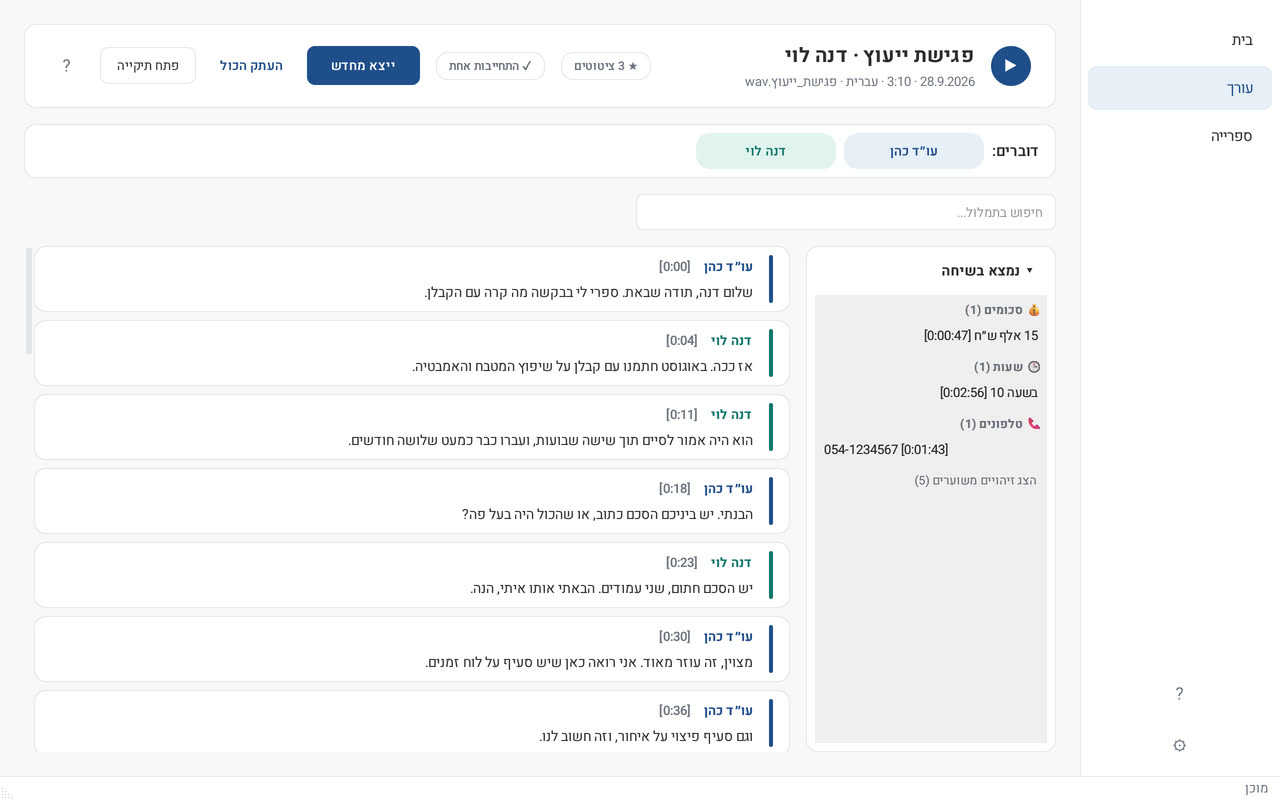
Speakers are separated automatically. Click "Speaker 1", type "Attorney Cohen", and the name updates across the whole transcript at once.
Every line has a timestamp. Click a line to play that part of the recording, so checking and fixing is easy.
Amounts, dates, times, phone numbers and addresses mentioned in the conversation are collected in one panel. Click an item to jump to the line where it was said.
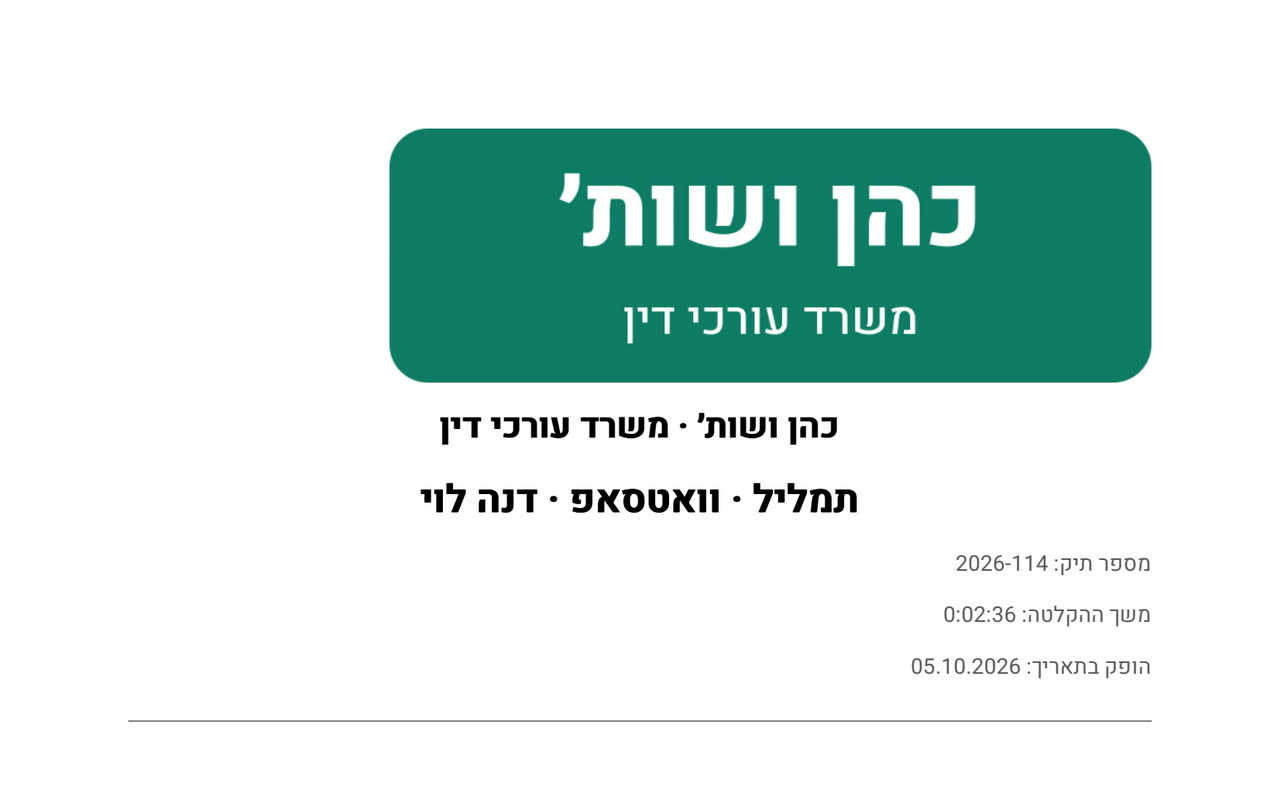
Export a tidy document with your office logo and name at the top. TXT and SRT subtitles for videos are included too.
New: record a meeting, a lesson or a dictation right in the app, then click "Transcribe now". The recording is saved on your PC only.
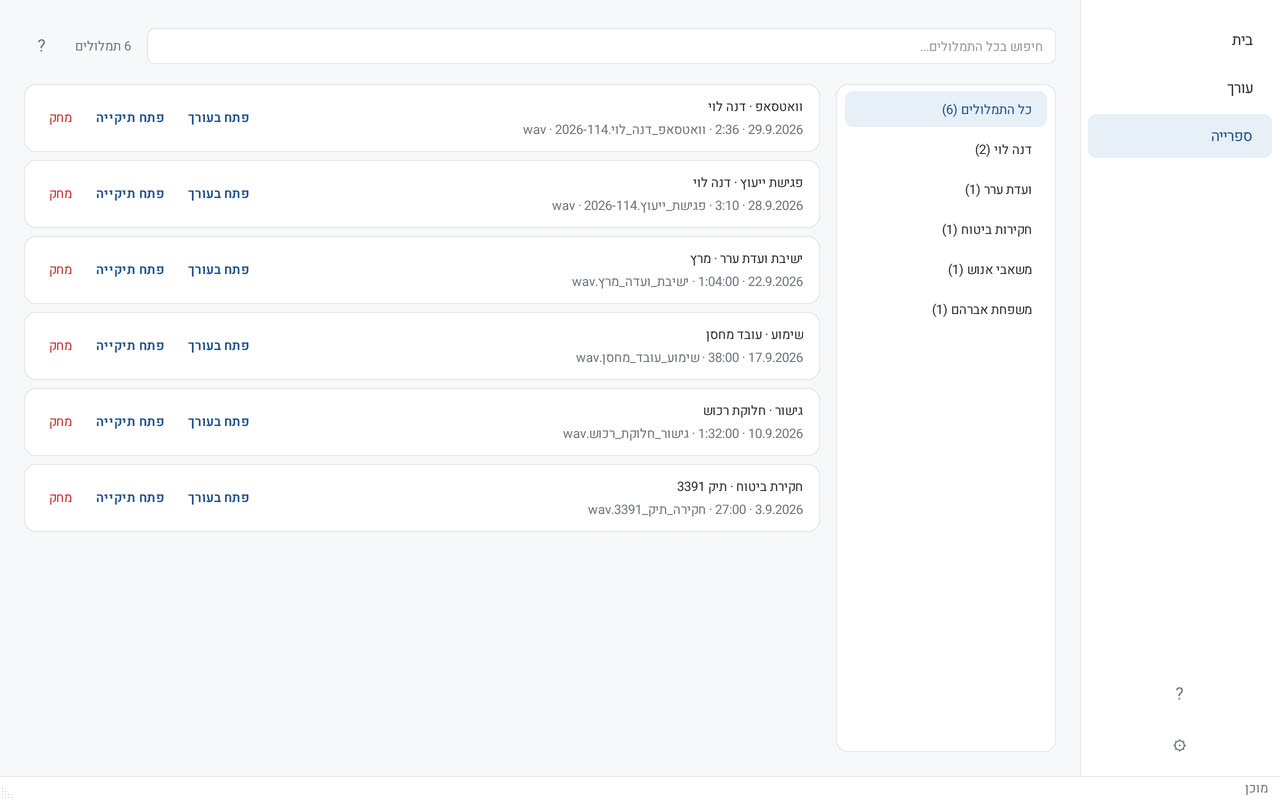
Each transcript is saved in its client or project folder. You can also set a watched folder: every recording saved there is queued automatically.
Search for a word or a name and find it in every transcript you have made, in one organized library.
Transcription runs on your own computer. The recording, the transcript and the document are never sent to any server. Suitable for sensitive material.
See it
A clean interface in English, Hebrew, Arabic and Russian, with light and dark modes. The screenshots below show the Hebrew interface with sample data.
How it works
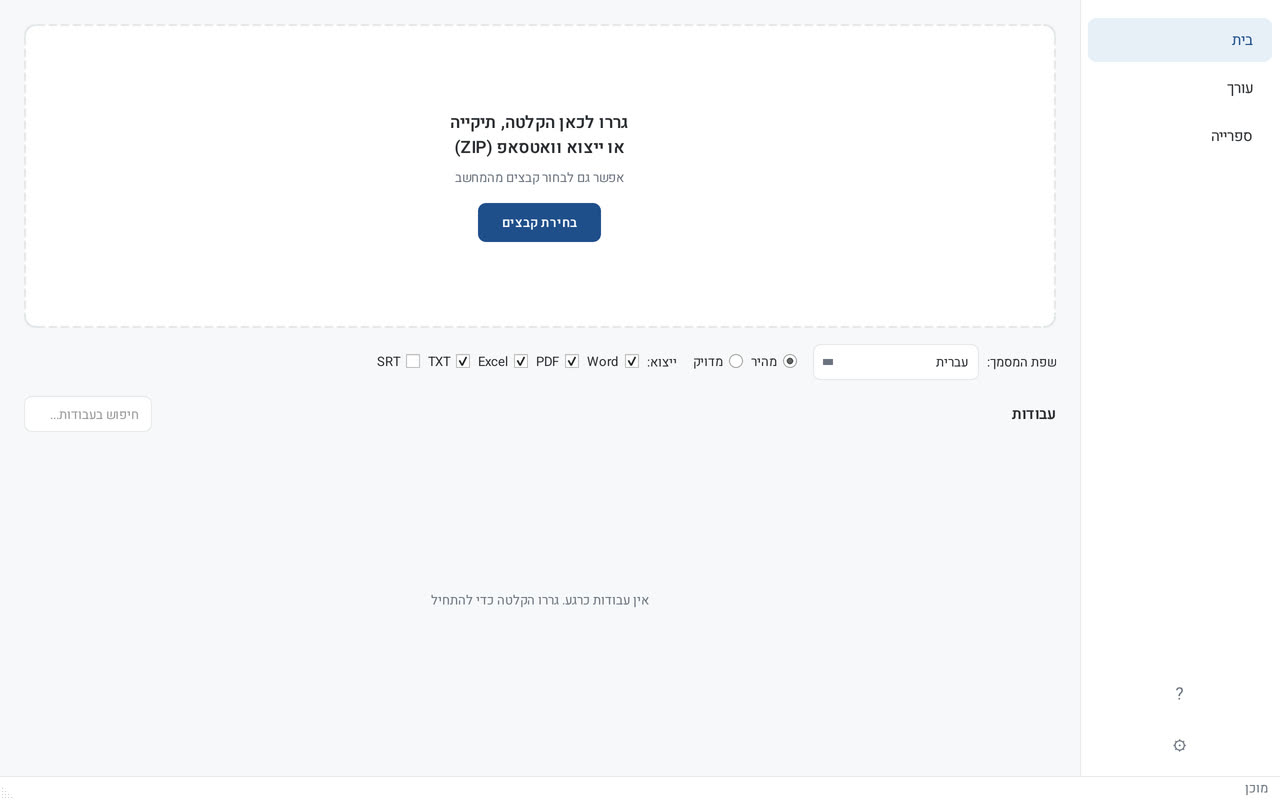
A recording, a video, a whole folder or a WhatsApp chat. You can also record straight from your microphone.
Choose a language (or automatic detection) and the transcription runs on your computer, without internet.
Name the speakers, fix anything you need and export to Word, PDF, Excel or SRT.
Who it is for
A podcast, an interview, a private lesson, a lecture, a meeting or a client call: every video and every recording becomes text, with timestamps. (The video is in Hebrew.)
Transcribe hearings, mediations, meetings and client calls. Sensitive material stays in the office.
Transcribe recorded lectures and lessons into searchable notes.
Turn a recorded lesson into text and subtitles for the video.
Transcribe interviews and calls, with marked quotes and timestamps.
Transcribe episodes and videos, and export SRT subtitles for YouTube and social media.
Transcribe job interviews, hearings and committee meetings for the minutes.
Amounts, dates and phone numbers from calls, all in one place.
14 voice messages from a client? One document, with a name and time for each.
Download and install
The installer is large (about 6 GB) because the transcription models are inside it. That is what lets Dikdukai work afterwards with no internet connection at all.
If Windows shows "Windows protected your PC", click More info and then Run anyway. This is normal for new software. If Google Drive says it can't scan the file for viruses, that is because of its size. Click "Download anyway".
Requirements: Windows 10 or 11 (64-bit) · about 7 GB free disk space · 16 GB RAM recommended (8 GB works in Fast mode)
Free pilot
After installing you can try it right away, no sign-up: one file up to 3 minutes. To get 30 days free with no limits, email us your Machine ID and we will send you an activation key.
In the app, click the gear ⚙ at the bottom of the side menu.
Next to "Machine ID", click "Copy ID". The ID is a long code of letters and numbers.
Paste the ID into an email to dikdukai@gmail.com. You can use the ready-made template below.
When the key arrives, click "Enter activation key" in Settings, paste it, and your pilot starts.
Send your Machine ID to:
Ready-made email (Subject: Request to join the Dikdukai pilot)
Hello,
I would like to join the free 30-day Dikdukai pilot.

My Machine ID: (paste here)
Full name:
Occupation:
Phone (optional):

Thank you!
Transcription converts speech to text: a recording, a call or a video becomes written text. Most automatic transcription services work in the cloud, which means your recording is uploaded to someone else's server. Dikdukai does the same job locally on your Windows PC: no internet, no upload, so the recording, the transcript and the document stay with you.
Instead of listening to dozens of voice notes one by one and typing them out, use WhatsApp's "Export chat" and drop the ZIP file into Dikdukai. It finds the voice messages, transcribes them and puts them in order, with the sender and the time. Works with chats exported from Android and iPhone.
In a conversation with several people, Dikdukai separates the speakers and labels them "Speaker 1", "Speaker 2" and so on. Name each speaker once and the name updates throughout the transcript. The result reads like proper minutes of a meeting, hearing, mediation or interview.
Dikdukai transcribes video files (MP4, MOV, MKV and more), not just audio. Students transcribe lectures, teachers turn recorded lessons into text, and creators export SRT subtitles to upload with their videos to YouTube.
Choose the language of the recording, or "Mixed / automatic detection" for recordings that switch between languages. Hebrew transcription is where Dikdukai is strongest, using models trained on Hebrew. The interface is available in all four languages.
If you are looking for a Windows alternative to cloud tools like Otter or TurboScribe, or a desktop app in the spirit of MacWhisper, Dikdukai runs entirely on your PC. That matters for lawyers, HR teams, researchers and anyone handling confidential recordings.
Questions and answers
Download, try it right away, and join the free 30-day pilot.